Introduction
In the previous post, we looked at user interaction events (user engagement, scroll, video plays, etc.) that allow us to track user’s growing interest in a store. But these events do not contain the metric that we really want to see – add_to_cart.
There’s one more event that does not measure engagement, but has the same structure as ‘add_to_cart’. This is ‘View Item’ event which is triggered when a product page opens. We also get a page_view event for the page, so the view_item is an extra event on page load.
But view_item contains the Items Array – an array with all the information about the product. This is what makes it useful.
These item details are essential data for any analysis. After all visitors want to to buy particular items from your store – so the ‘things’ are important. In this post we will look view_item and add_to_cart events, and get details from Items Array into our models.
The next milestone in user’s purchase journey is adding a product to cart. add_to_cart captures that. Combined, they form the first half a user’s purchase journey.
- Items Viewed
- Items Added.
The events in part 1 of engagement (user engagement, scroll, video plays, etc.) allow us to track user’s growing interest in a store. Now we convert this interest into numbers and metrics.
Let’s get started.
Events
Event: view_item
Trigger: When visitors visit a product display page (PDP).
Shopify Stores are all about PDPs – users rarely buy an item without going to it’s details page. The view_item event captures just this – product page views. The Items Array gives us all the relevant details about the product viewed.
View_item triggers with the page_view event for PDPs. While the page_view event does not contain any information about the product viewed, view_item contains the Items Array. This is what is contains: –
Items Array
Query for extracting details is WIP.
| Name | Description | Availability | Comment |
|---|---|---|---|
| item_name | Name of the item variant as shown on PDP | Full | If your item name changes with variant, this will reflect the same. |
| item_id | this is the unique identifier of the item. If product has variants, the id has both item id and item variant id. | Full | Multiple variants of an item have same item id but different item variant id. |
| price | Final sale price of the item as shown to the store visitor. Includes any discount that’s already applied. | Full | |
| quantity | Number of units of the item. Typically the value is 1. | Full | Value depends on the implementation of multi-unit bundles of a product. Use after checking data for your bundle offers. |
| item_variant | Name of the variant of the item. | This is the text that visitor sees on the product page in the ‘variant selection’ area. | |
| item_category | Category of the item | Only if set in Shopify. | Useful for stores with large collections across various categories. |
| item_brand | Brand of the item. | Only if set in Shopify. | Useful for multi-brand stores. |
| item_category_2, 3, 4, 5 | Other categories of the item. | Only if set in Shopify. | |
| price_in_usd | Item price in USD. | Only available in some events. | |
| coupon | Coupon code applied on the PDP | Only available in some events. |
Events: view_item, add_to_cart, begin_checkout, purchase, add_payment_info.
This items array makes the event useful. GA4 uses this event for all the item level reports it generates by default. It shows up as ‘Items Viewed’ column in E-commerce Purchases report.
Note: if you are selling items in a bundle of 2 or 3, it can be implemented both as a new variant or as a bundle. Check your implementation and event data to figure it out for your setup.
Event: add_to_cart
Trigger: When user adds an item to cart, or increases the quantity of an item already in cart.
The ‘add_to_cart’ event bridges a user journey from engagement to purchase. Ultimately all the engagement should lead the user to add a product to cart.
This event also has an Items Array. This has the same details as give in the table above.
When you start building models with this data, there can be some confusion because of event and parameter names, and also because of events which are not captured by GA4. Below section summarizes the common errors i have faced with the event. (Add your own in the comments section)
Common errors while using add to cart
- Users add and remove items continuously in a session. But there is no ‘remove_from_cart’ event, so we only get data about additions. A mistake analysts make it to assume add to carts by a user equal items in her cart. That’s incorrect.
- Items added to cart can go out of stock, change in price, etc. before user has checked out. This can happen in the same session or across sessions. We have no way of knowing this till user starts checkout. We can get the items in a users cart in the begin_checkout events. This is covered in ‘begin_checkout’ event in Purchase Part 1 post.
- The page_location parameter in add_to_cart event is the URL of the page where visitor added the item to her cart. However, this may not be accurate when the item is getting added from the cart overlay as the URL in this case is the page in the background. You need GTM setup in order to distinguish between these.
- If you are using some 3rd party app for up-selling, it may send the event directly to your GA4 account with an arbitrary page location like your homepage’s URL. Or it may not send any event at all. You need to verify the event_params for various cases to be sure.
Note on Items Array and E-commerce Array
The data in these arrays corresponds to the event and the item being added, not to the user’s cart. The quantity value in items array is the quantity added in that instance, not the total quantity of the item.
The names of some of these fields can be misleading. Just remember that nothing in these events is related to user’s cart.
We will look into the Ecommerce Array in details in the purchase posts.
Data models
item_details
Model: item_details
Description: This model contains a short summary of product traffic alongwith relevant details about the product page itself taken from view_item event. You can add more columns to improve this summary if you have GTM setup. For example, you can add item_median_rating, pageviews_with_image_clicks, pageviews_with_review_impression, and so on.
| Column Name | Description |
|---|---|
| date_ist | Date, in IST, taken from the event_timestamp |
| item_id | unique identifier of the product (not the variant) |
| item_variant_id | unique identifier for the product variant. |
| session_type | a categorical field based on session source and medium. Data taken from session_details_inc |
| item_name | Name of the product, typically contains the variant name as well. |
| item_price_median | median price of the item on this date. Median takes care of small variance in price in a day. |
| Users | Number of users who visited the product page on the day. |
| Sessions | Number of sessions with visits to the PDP. |
| Pageviews | this is a count of page_view events. |
| Landing_pageviews | Number of Pageviews where the PDP was the landing page. |
| Pageviews_with_additions | Pageviews where users added this item to cart. We don’t include additions of others items from this page (from the recommended or recent list) |
| Pageviews where users added this item to cart | Number of users who added the item to cart. |
all_atcs
This contains all the add to carts on the page. There are two main types of add to carts:
pdp_atc
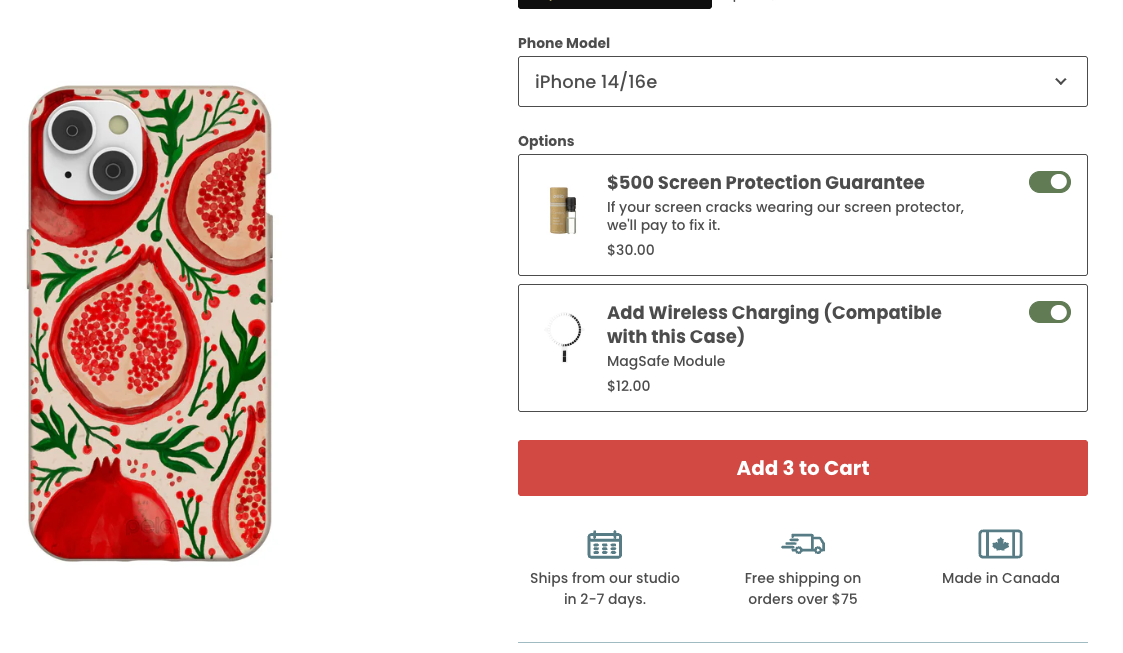
add to cart on product display page – for the item corresponding to the product page. Typically these are very prominent buttons and the most frequent way of addition.
product_card_atc
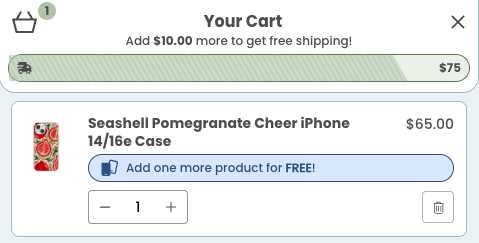
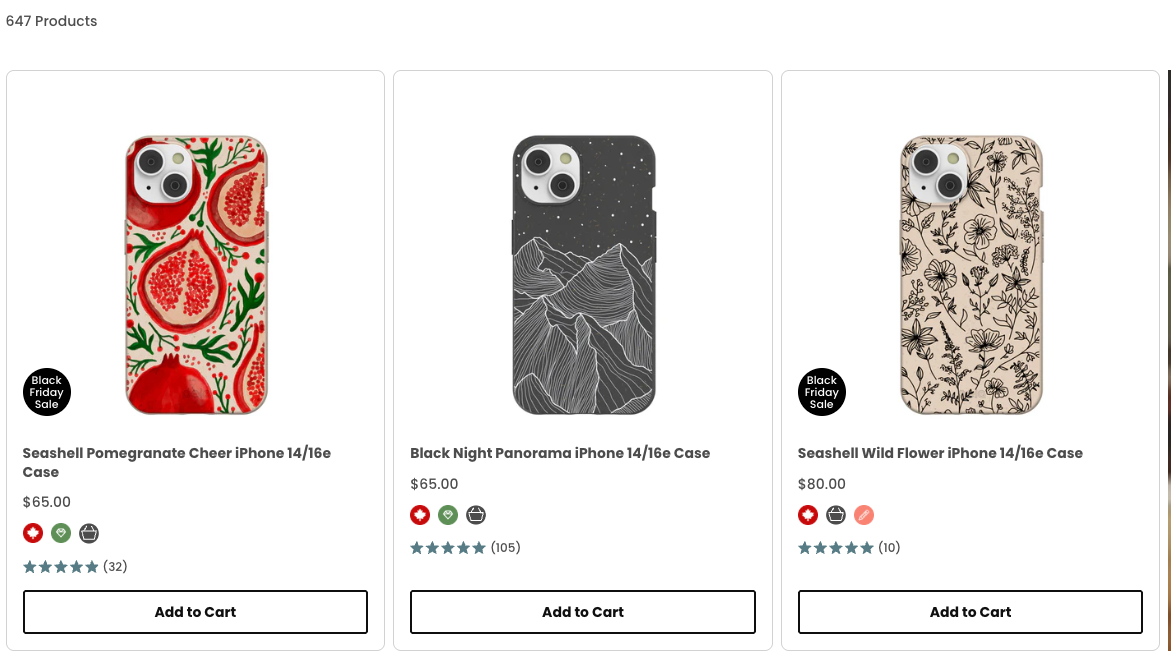
This is for add to carts from product cards anywhere on the website – including the cart. This also includes cases of increasing the quantity of an item already in the cart.
Model: all_atcs
Description: This model contains a short summary of product traffic alongwith relevant details about the product page itself taken from view_item event. You can add more columns to improve this summary if you have GTM setup. For example, you can add item_median_rating, pageviews_with_image_clicks, pageviews_with_review_impression, and so on.
| Column Name | Description |
|---|---|
| date_ist | Date, in IST, taken from the event_timestamp |
| item_id | unique identifier of the product (not the variant) |
| item_variant_id | unique identifier for the product variant. |
| user_id | unique user identifier |
| ga_session_id | unique session identifier for a visitor |
| item_name | Name of the product, typically contains the variant name as well. |
| item_price | median price of the item on this date. Median takes care of small variance in price in a day. |
| atc_type | product page add to cart, or product card add to cart. |
| Addition_type | Whether visitors has added a new item or increased quantity of something in cart |
| page_location | URL from the page, from the add_to_cart event, after removing extra parameters. |
With these models in place, we are now ready to dive into engagement data.
Leave a Reply